
Color palettes: save, sync to your account, and count beads
Save your own perler bead palettes in the editor, record how many beads you own per color, and choose local or cloud storage. Covers limits, read-only palettes, and FAQs.
What is a color palette?
A palette is a saved set of colors that matches the beads you actually own. Once applied, the color panel keeps only those colors, so painting and picking colors stay within your stock.
Each palette can also store how many beads you own per shade, so you can tell before you start whether you have enough.
Open palette management in the editor
- In the color panel on the right side of the editor, click Manage in the top-right corner.
- The Palettes tab holds your saved and recommended palettes; the All Colors tab is where you select colors and save a new palette.
Save your own palette
Pick colors
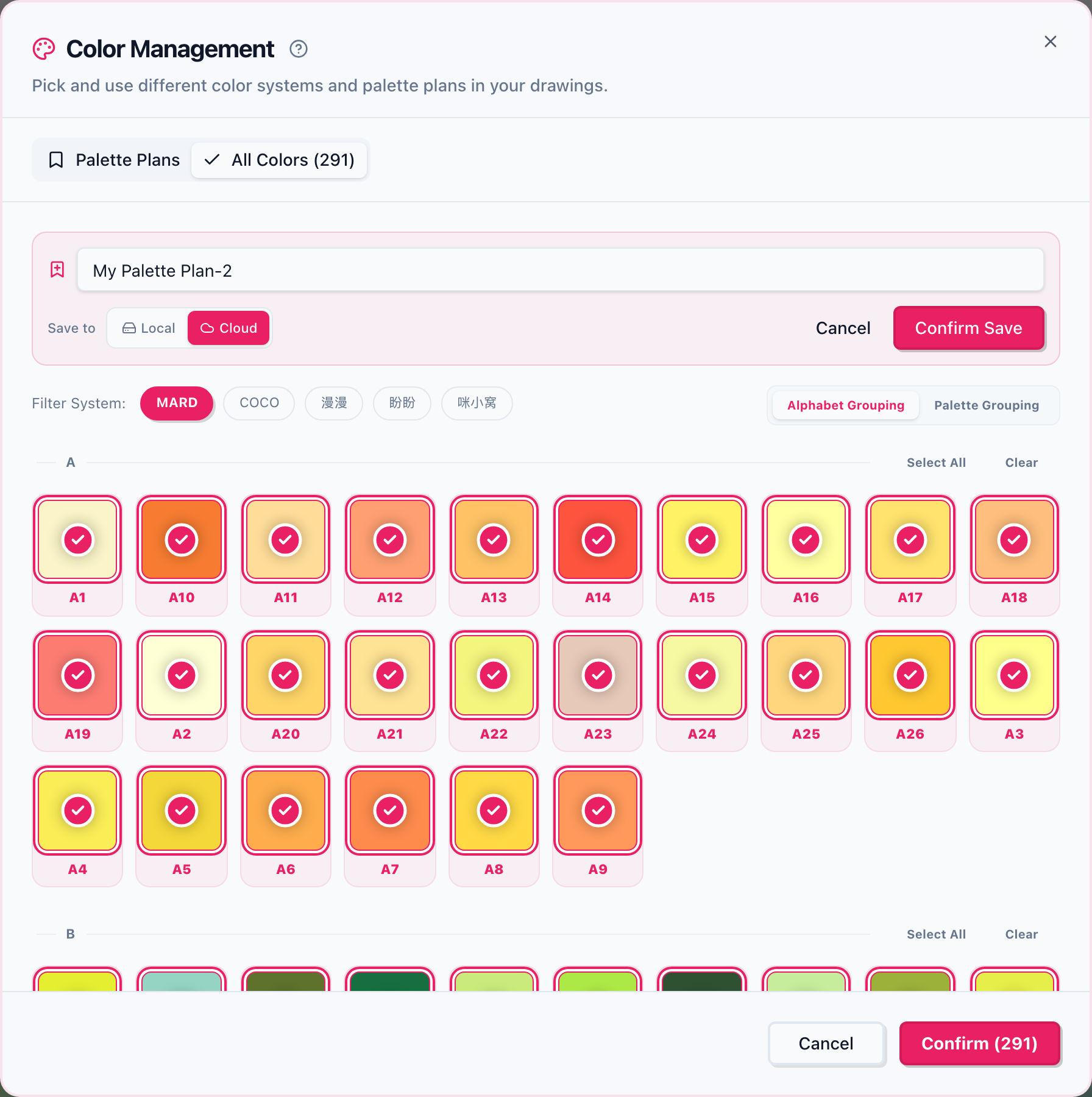
Open the All Colors tab and search by shade code or name, or browse by brand and letter. Click swatches to select them; you can select all or clear.
Name the palette
Click Save as palette and give it a name you will recognize (the default is My palette plus a number).
Choose where it lives
Under Save to, pick Local or Cloud. Cloud is disabled when you are signed out, not a member, or out of cloud slots, and the reason is shown underneath.
Confirm
Click Confirm save. The palette appears under Saved palettes in the Palettes tab and can be applied at any time.
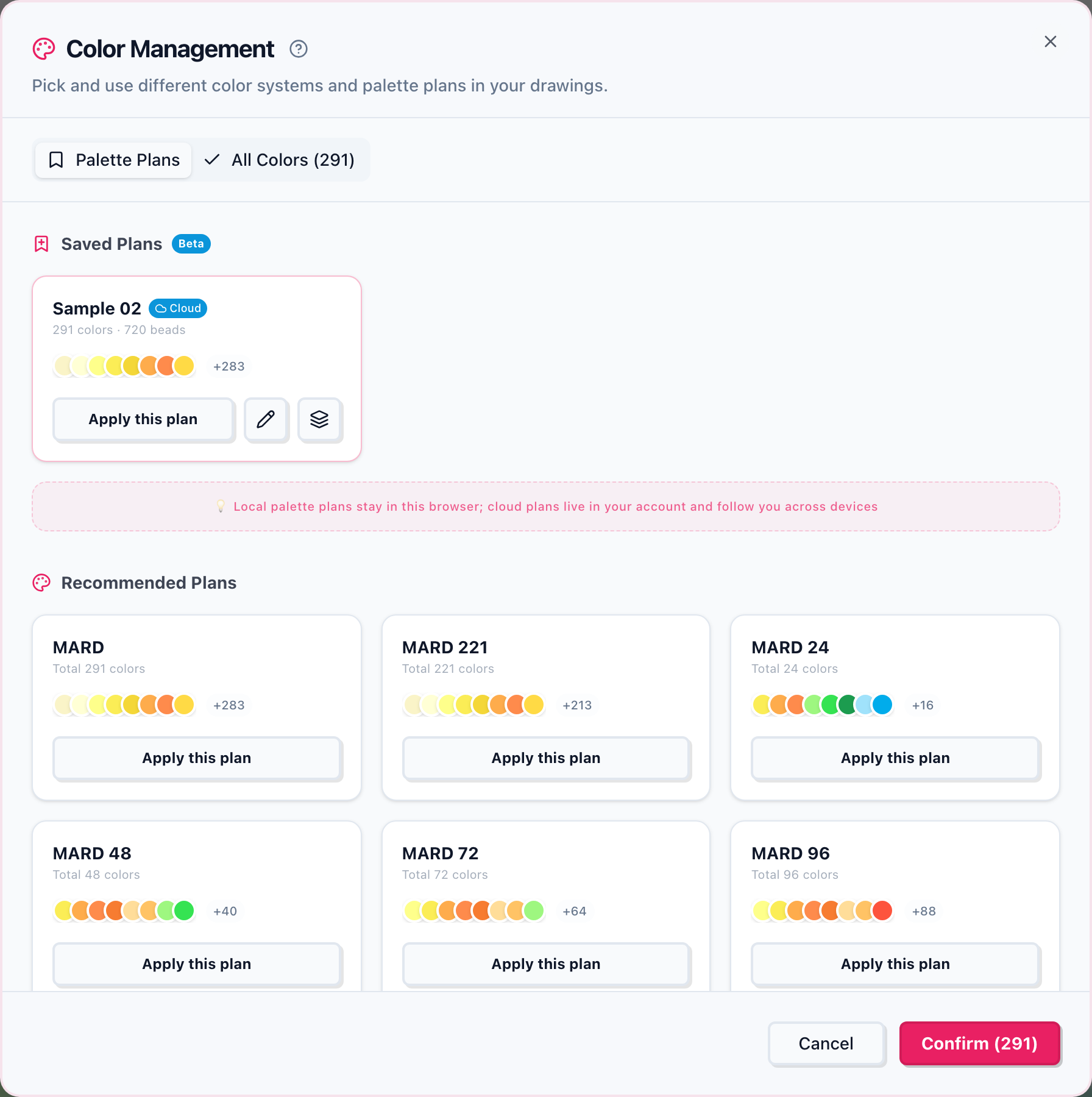
Local vs. cloud palettes
| Local | Cloud | |
|---|---|---|
| Stored in | This browser | Your account |
| Another device or browser | Not available | Available after signing in |
| Account required | No | Yes |
| Bead counts | Supported | Supported |
| Number of palettes | Unlimited | 10 free, unlimited for Pro / Sponsor |
Cloud limits and read-only palettes
- Free accounts keep up to 10 cloud palettes; Pro and Sponsor members have no limit.
- After a membership expires or is downgraded, palettes beyond the allowance become read-only: you can view and apply them, but not rename, recolor, or change counts. Deleting one frees a slot.
- Read-only palettes carry a Read-only badge, and their edit and quantity buttons are disabled.
- If cloud palettes fail to load, a Retry link appears above the cards.
Record bead counts per color
Counts record how many beads you own of a shade, so you can tell whether a pattern is buildable.
Open the quantity panel
On a palette card, click Edit quantity. Read-only palettes show View quantity and cannot be changed.
Select colors
Click swatches in the grid; multiple selection is supported, and the search box finds a shade code or HEX value.
Enter counts
Type a number and click Set to overwrite, or Add to increase the current count. Each color holds up to 99,999 beads.
Save
Click Save to write the counts into the palette. Cloud palettes save to your account; local ones stay in this browser.
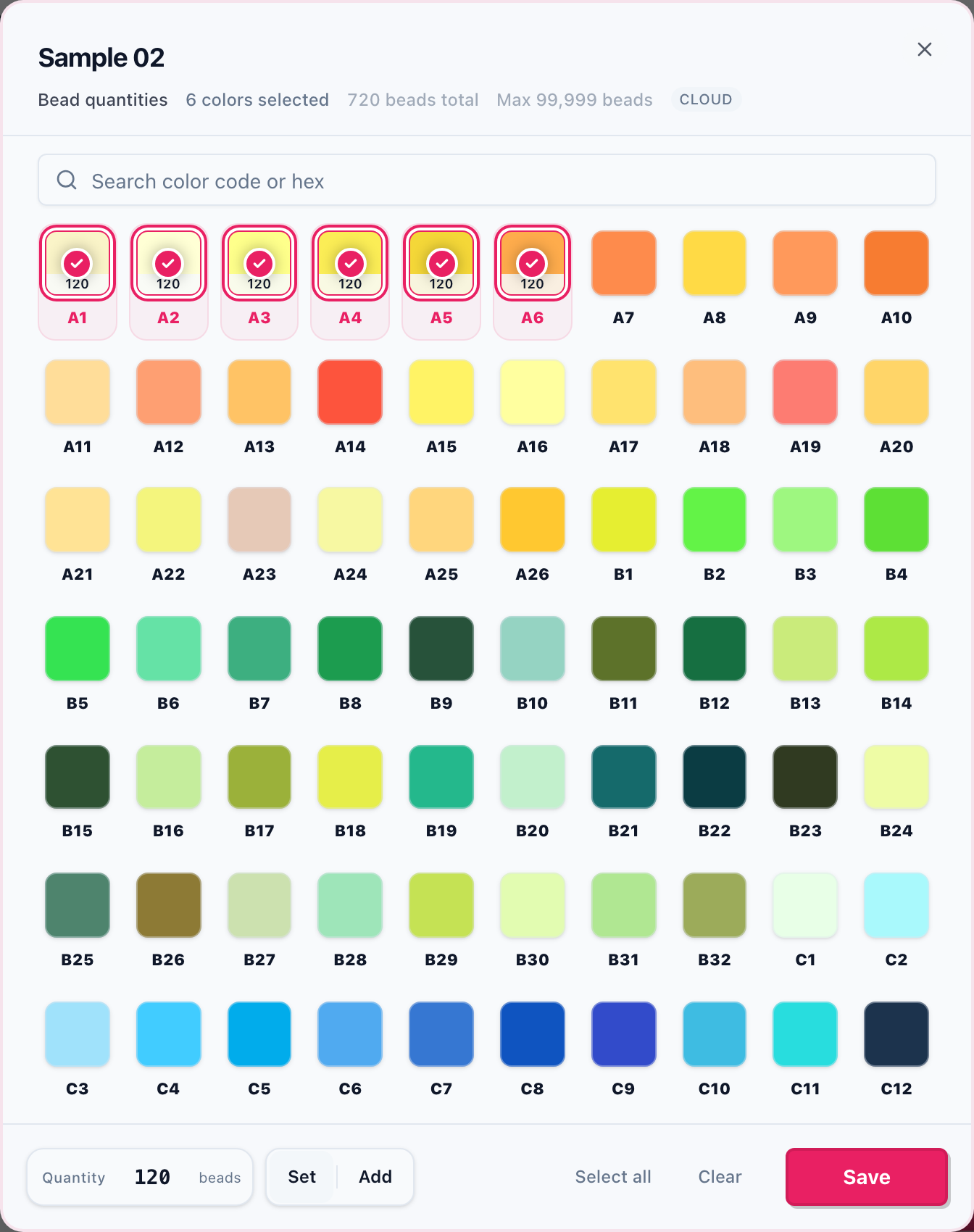
- Each color holds 0–99,999 beads; larger input is clamped to the limit.
- Set overwrites the current count, Add increases it, and entering 0 clears that color’s count.
- Counts are only written when you click Save; closing the panel discards the edits.
- Palette cards show color and bead totals, for example “12 colors · 1,240 beads”.
Apply, rename, and delete
- Apply: click Apply palette to switch the available colors to that palette. Existing cells keep their colors.
- Rename or recolor: click the pencil button, make changes, and save; cloud palettes are written back to your account.
- Delete: click the trash button, then Confirm delete. Deletion is permanent and frees a cloud slot immediately.
- Recommended palettes are built in: you can apply them but not rename or delete them.
Frequently asked questions
To learn the selection and move/copy tools, see Selection and move/copy. For the release background, see the editor update notes.