
Selection and move/copy: move a block of the canvas
Use the marquee tool to select an area and move or copy it anywhere on the canvas, with edge handles, clipping at the border, and single-step undo.
What can selection do?
The marquee tool treats a rectangular area as one block: move it somewhere else, or duplicate it in place. It is handy for shifting a whole motif, repeating details such as eyes or patterns, or clearing a region quickly.
Select an area
Choose the selection tool
Pick Marquee in the left toolbar, or press V.
Drag a selection
Press and drag on the canvas around the area you want. On release, a marching-ants outline appears and an action bar shows above the canvas.
Resize the area
Drag the short handles just outside each edge to grow or shrink the selection by that edge; the captured content stays the same.
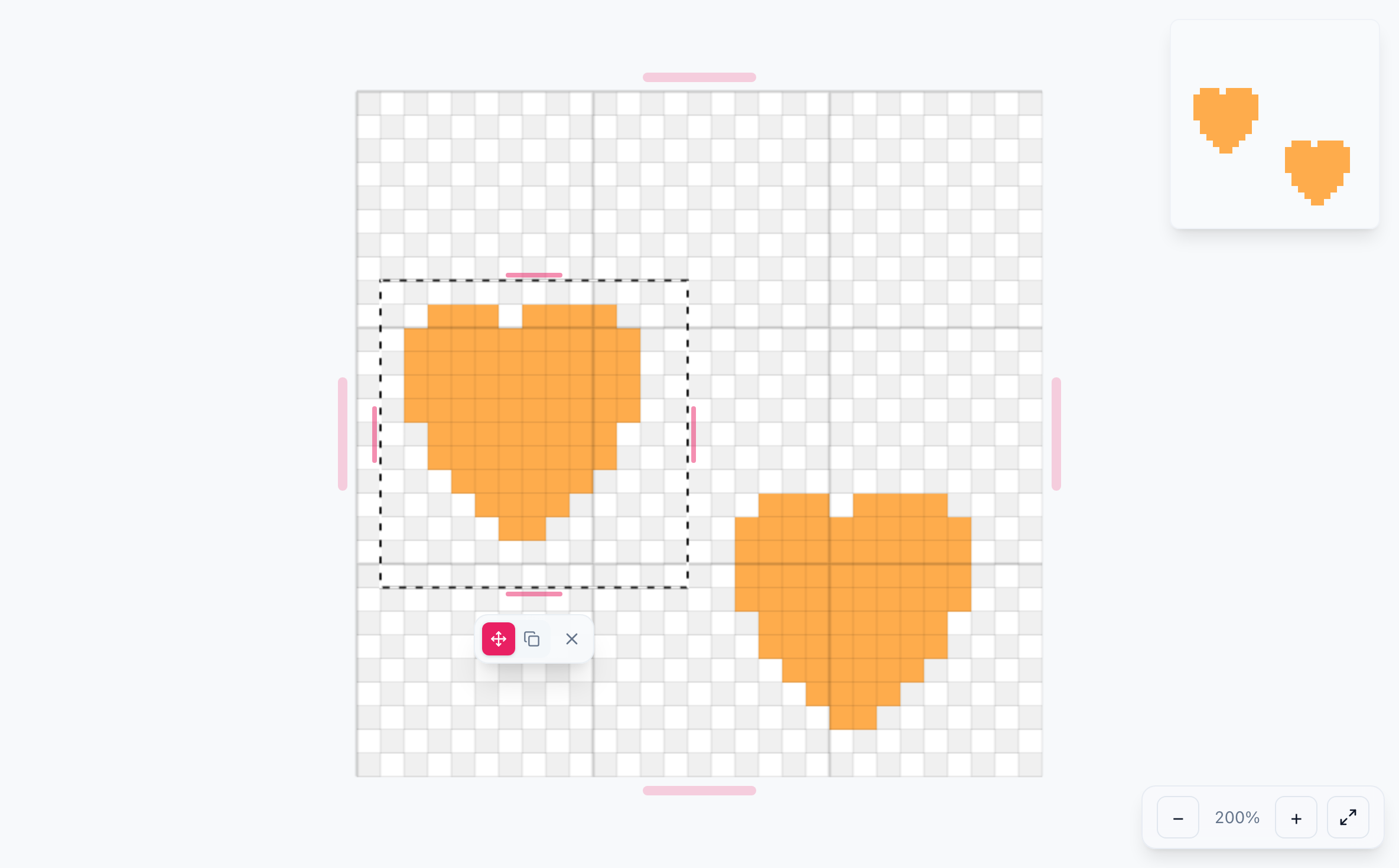
Move or copy
Drag inside the selection
The selected content follows the cursor as a translucent preview; the canvas itself is not changed yet.
Pick move or copy
Switch between Move and Copy in the action bar. Move clears the original spot; Copy leaves it in place.
Confirm or discard
Click ✓ to write the content into the canvas and end the selection; click ✕ to discard the drag and keep the canvas as it was.
Undo if needed
A confirmed drop counts as one history step, so Undo restores the whole block.
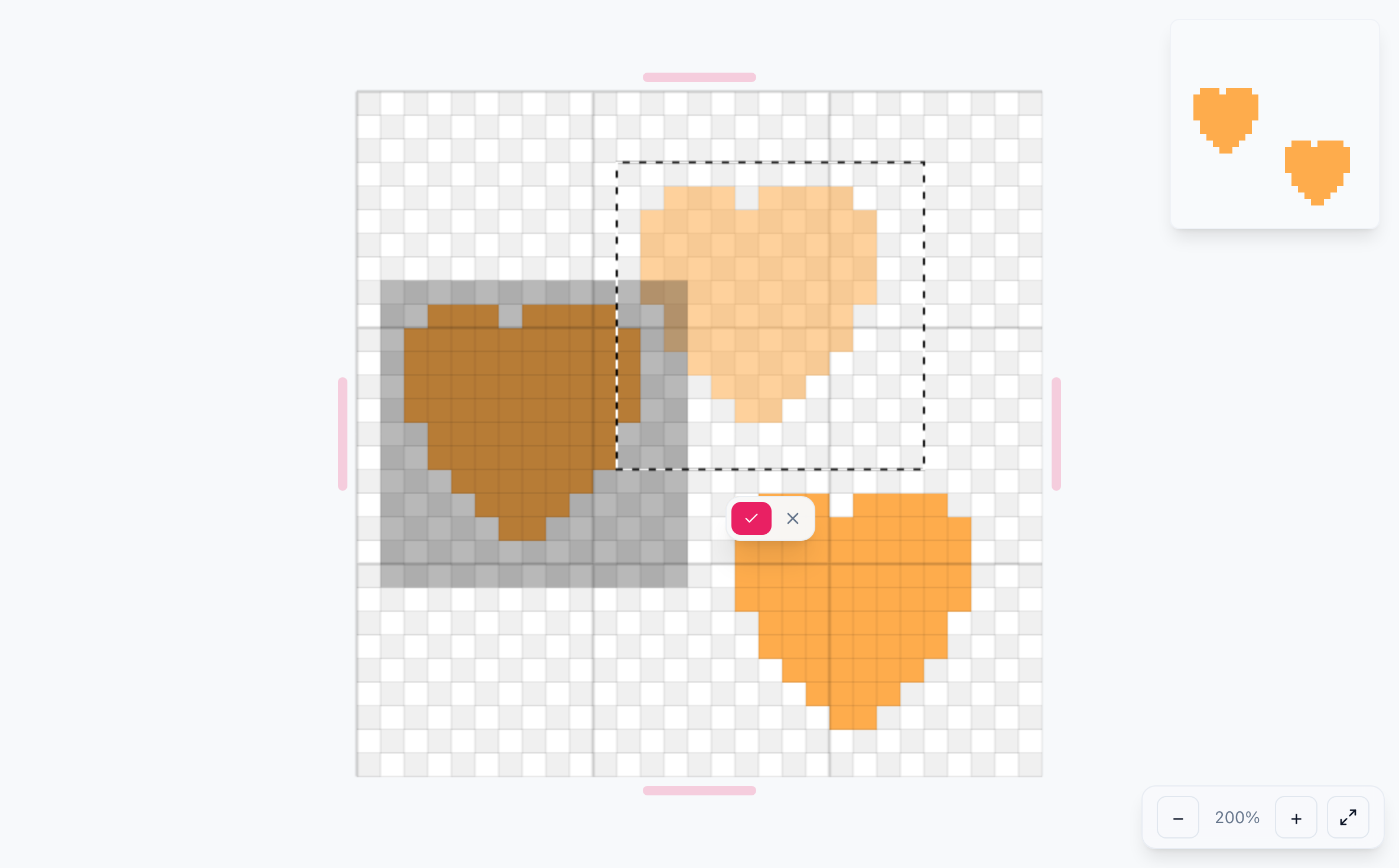
- Clicking outside the selection while dragging drops the current drag first.
- After releasing you can keep dragging at the new spot until you click ✓ or ✕.
- Dragging past the canvas edge is allowed; anything outside is clipped.
Resize, clear, and cancel
- Resize: drag the short handles just outside each edge to grow or shrink by that edge; the hit area is wider than it looks.
- Clear contents: press Backspace to make the selected cells transparent.
- Cancel: press Esc, or click ✕ in the action bar.
- Undo: a confirmed drop is one history step, so Undo and Redo roll it back or restore it.
Frequently asked questions
Next, see color palettes and bead counts, or read therelease notes.